
First, make sure EBM is set to allow access to item attributes. Here is a help video showing how to activate attributes and allow editing.
How to enable item attribute editing
https://www.loom.com/share/00fdd2701e73409190fc64af27388ce3
important to know that the newly added item doesn’t need attributes unless you intend to make it available from one of the pulldown menus in a takeoff module. Otherwise, the item can be selected from the Miscellaneous Takeoff screen.
Setting attributes so that a newly added item will appear on the pulldown menu in a takeoff screen requires a full understanding of how the new items is the be used. For example, if you are adding a new conduit support and you would like it available din the Feeder takeoff screen when EMT conduit is used, you will need to set appropriate attributes.
The easiest method is to copy the attributes from an existing support item currently found in the Feeder Takeoff screen, by using the “copy attributes” button when you are adding/editing the new support in the item database.
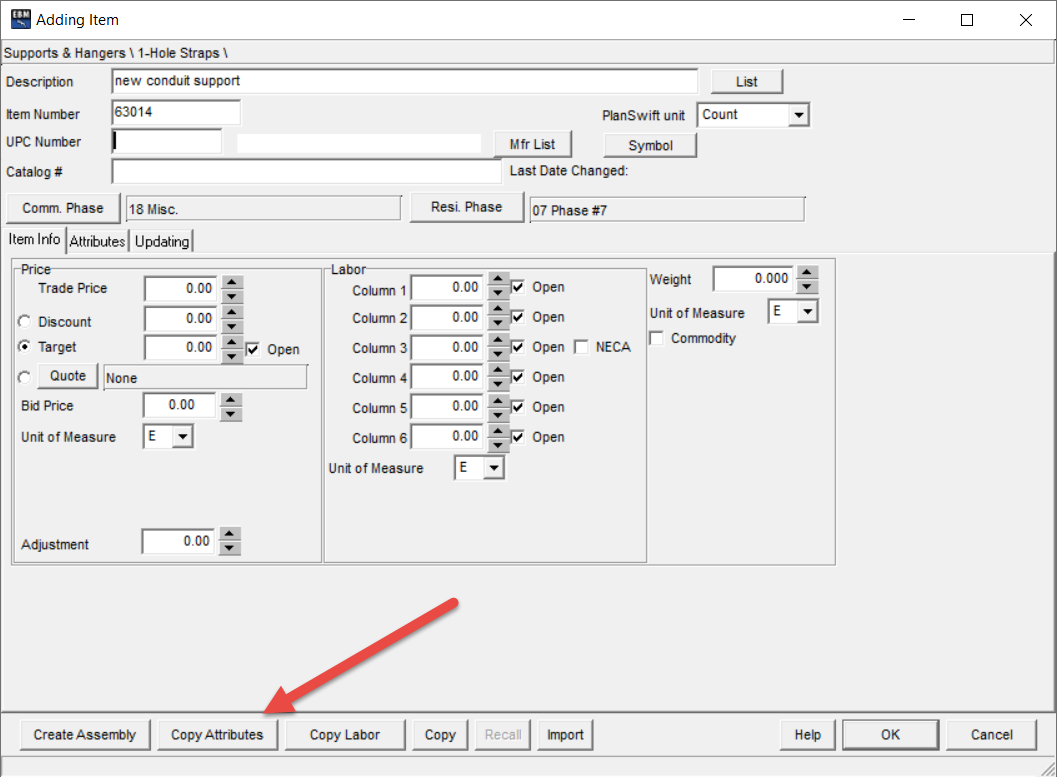
This will open the item database, allowing you to select an existing support item (i.e. 1-hole straps) from which the attributes can be copied.
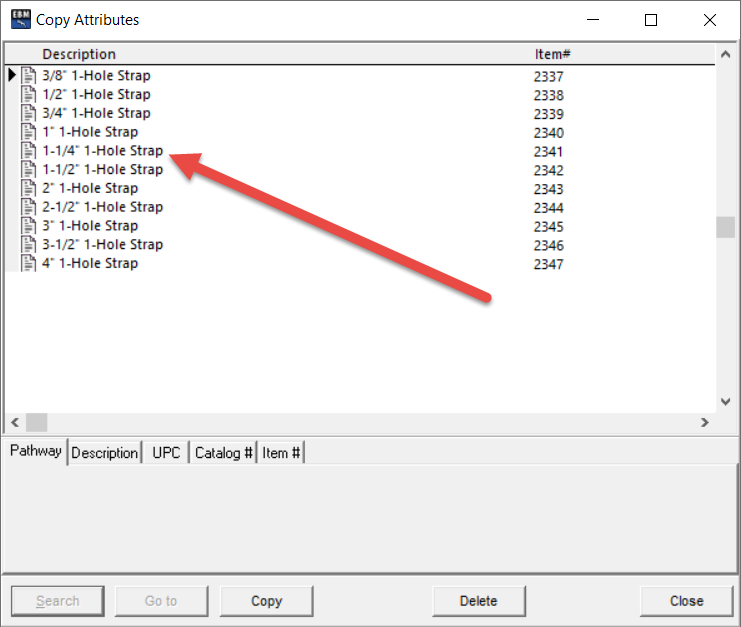
Once the attributes are copied, you may need to change certain attributes to better represent the newly added item. For example, the “support type” attribute is set to “1 Hole” which may not be correct for the new item.
To change this, select “support type” from the “attribute group” list, then the appropriate name from the “attribute name” list. In this case, the appropriate name for this new item is “new conduit support”. However, that name is not on the list. To add the new attribute name, do a right-side mouse click among the existing names and select “add” from the prompt.
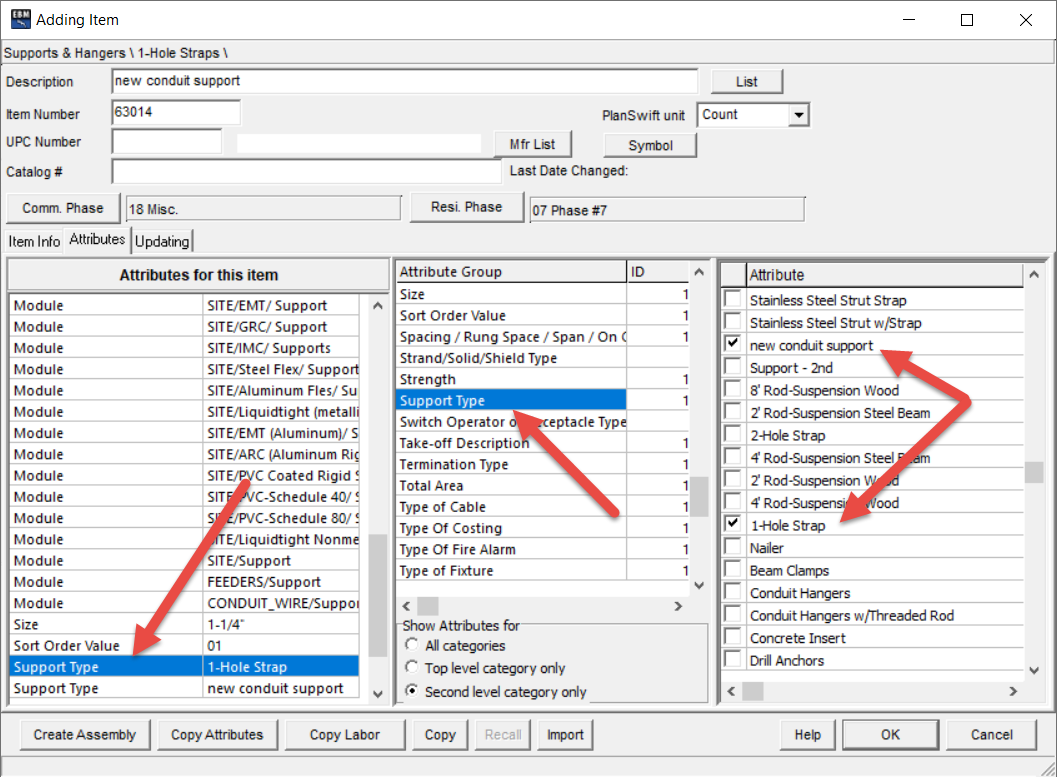
Your new attribute will become part of the list of “attributes for this item” when you place a checkmark next to the attribute name. With this, along with any other attribute changes you deem necessary, the new support will now show on the takeoff screen.
Comments
0 comments
Article is closed for comments.